How to Turn a Finished Article into a Blog Draft with One Claude Code Skill


Internal test draft, do not publish. This post shows the team how we turn a finished article, either a Google Doc or a Markdown file, into a Storyblok draft for the DMARKOFF blog with one Claude Code skill. It also covers how to connect Storyblok and Google Drive so the skill can do the work. The draft itself was made with the skill, so it doubles as a live example.
Until now a blog draft took an afternoon of copy and paste: upload every screenshot by hand, redo the captions, rebuild the tables, move the FAQ into the accordion, make a cover, then hunt for whatever broke on the preview. The dmarkoff-blog-draft skill does all of that in one conversation and then checks that the preview shows exactly what it sent. You still review the draft and publish it yourself.
TL;DR
- Get the skill once: upload a zip in Claude (no GitHub access needed), or install the plugin from our skills repo.
- Connect Storyblok with your own Storyblok account, so there is no token to create or paste. If you write in Google Docs, connect Google Drive too.
- Give Claude a Google Doc link or a Markdown file, plus the author, the category and the date. It proposes a plan, waits for your yes, creates the draft, checks it on the QA preview and sends you the editor link and the preview link.
- The skill never publishes. Publishing stays a human click in Storyblok.
What the skill does
Set it up once
1. Get the skill
No GitHub access needed: upload the zip. Ask for the current dmarkoff-blog-draft.zip. In Claude, open Customize → Skills, click +, choose Create skill, then Upload a skill, and pick the zip. Skills you upload this way also show up in the Code tab of the Claude desktop app.
On a Team or Enterprise plan, an owner first has to turn on Skills and "Code execution and file creation" under Organization settings → Skills. An owner can also upload the skill for the whole organization: it then appears for everyone, and a new version is one upload instead of one per person.
With access to the dmarcoff GitHub organization: install the plugin. In a Claude Code session, run these two commands:
/plugin marketplace add dmarcoff/dmarkoff-claude-skills
/plugin install dmarkoff@dmarkoff-skills
To pick up new versions later, run /plugin marketplace update dmarkoff-skills.
Either way, run the skill in the Code tab of the desktop app (or the Claude Code CLI) on a Mac with Google Chrome installed. Uploading screenshots, rendering the cover and checking the preview all run on your machine.
2. Connect Storyblok
The first question everyone asks is which token to give Claude. The answer is none. The skill talks to Storyblok through the official Storyblok MCP server, and you sign in to it with your own Storyblok account over OAuth. Claude never sees a password or a token, and every write is limited by your account's permissions in the space.
In the Claude desktop app or on claude.ai: open Settings → Customize → Connectors, click + and choose Browse connectors. Find Storyblok and click Connect, sign in to Storyblok, pick the DMARKOFF space and the permissions, then click Allow access. If your Claude account belongs to an organization, an owner may first need to enable the connector under Organization settings → Connectors. If Storyblok isn't in the list, choose Add custom connector, enter https://mcp.storyblok.com/mcp and leave the OAuth fields empty.
In the Claude Code CLI: add the server once, then run /mcp in a session, pick Storyblok and finish the sign-in in your browser.
claude mcp add --transport http Storyblok https://mcp.storyblok.com/mcp
Storyblok tools start out as "Needs approval". Leave the write tools that way: the skill asks before it writes anyway, and the approval prompt is a useful second check.
Your Storyblok user also has to be a member of the DMARKOFF space with a role that can create stories and upload assets. If the connector signs in but can't see the space, ask a space admin to invite you.
3. Connect Google Drive (for Google Docs)
To import a Google Doc, Claude reads it through the Google Drive connector. In Settings → Customize → Connectors, connect Google Drive and sign in with the Google account that can open your docs.
No connector? Download the doc twice from Google Docs instead, with File → Download → Markdown (.md) and File → Download → Microsoft Word (.docx), and give Claude both files. The skill needs both: the Markdown export carries the text, and the Word export carries the images at full size.
4. If you need a Storyblok token anyway
For scripts, CI or a machine where OAuth isn't an option, use a personal access token:
- In Storyblok, open My account → Account settings → Personal access tokens.
- Click Generate New Token, limit it to the DMARKOFF space and the permissions you need, and set an expiry date.
- Copy it right away. Storyblok shows it only once.
- Keep it in an environment variable such as
STORYBLOK_PERSONAL_TOKEN, never in a file you commit and never in a chat message.
The MCP server takes the token as an Authorization: Bearer <token> header. The raw Management API takes it in the Authorization header without the Bearer prefix.
Which token is which
The preview token is the STORYBLOK_TOKEN in the website's .env. It can read drafts, which is how the QA preview shows them, but it can't create or change a story, so it is no use to the skill.
Make a draft
From a Google Doc
Paste the link into the prompt:
Make a blog draft from https://docs.google.com/document/d/…/edit. Author Markau, category SPF & DKIM, date 2026-11-03, and make a cover.
Claude exports the doc, converts it, and reports what's missing before it proposes the plan:
- Meta title and description. It writes them if the doc doesn't have them, and you confirm them in the plan.
- Alt text. It looks at every image and writes alt text for it.
- Placeholders and private links. Text like "[replace with the published URL]" or a link to another Google Doc usually means the doc isn't final. Claude lists them for you instead of guessing.
A doc converts cleanly when:
- the title uses the Heading 1 style, and sections use Heading 2 and Heading 3;
- each caption is an italic line right under its image;
- the FAQ, if there is one, comes last under a "FAQ" heading, with each question in bold and a plain-text answer;
- code is one line long, and multi-line data goes into a table.
Optionally, start the doc with a two-column table with rows Slug, Meta title, Meta description, Category, Author and Date. The skill reads it as metadata and leaves it out of the post. You don't need to resize images: they come over at their original size.
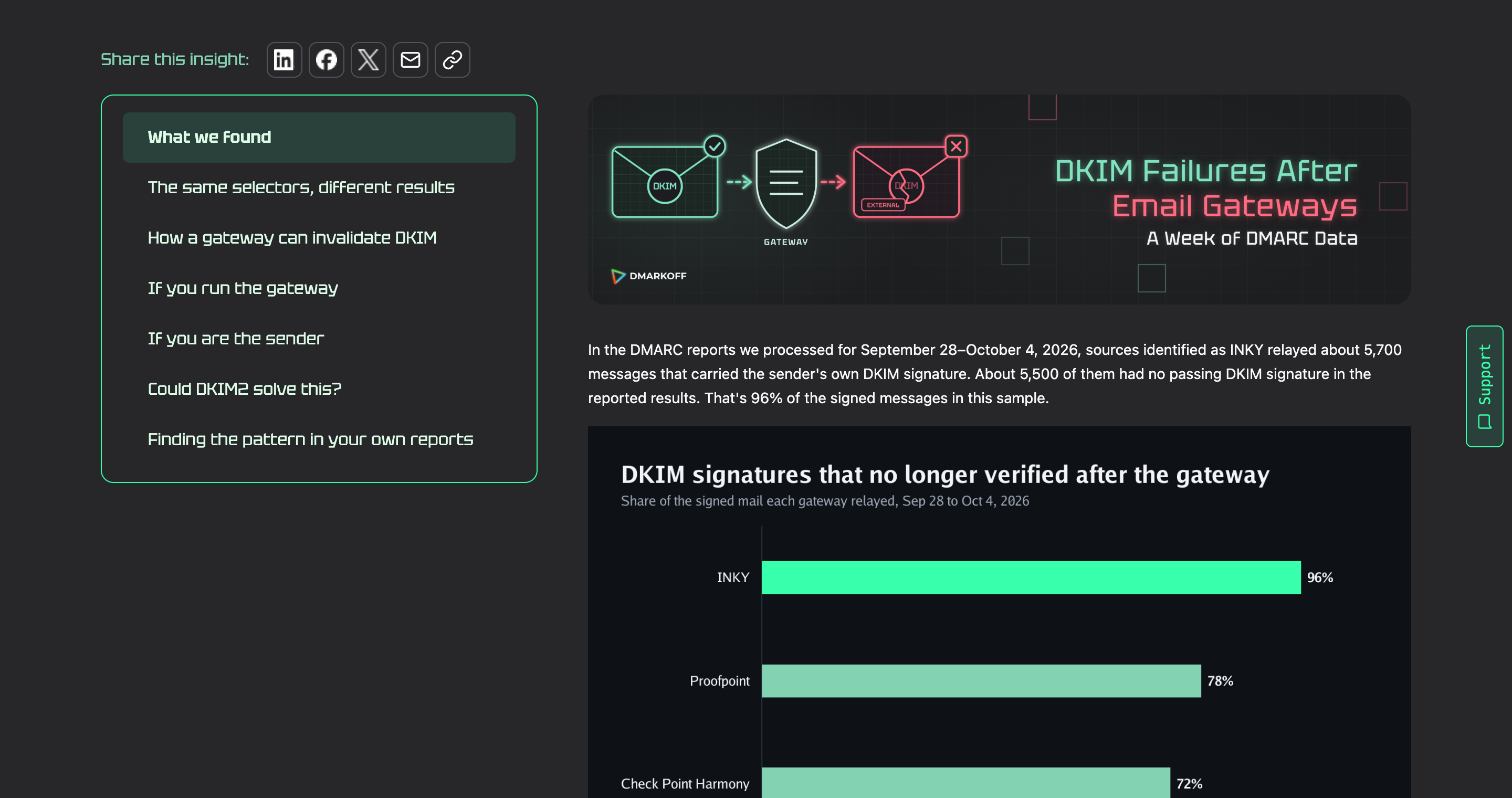
A draft imported from a Google Doc. The four images came over at full size with their captions, and the text on the preview matched the doc word for word.
From a Markdown file
The file needs front matter with title, meta_title, meta_description, slug and date. Put the screenshots in a folder next to the file and link them with relative paths. The same rules apply as for a doc: an italic caption line under each image, the FAQ last with bold questions, one-line code. Notes and disclosures should be paragraphs with a bold lead-in, not > quotes, because the site doesn't style quotes. You don't need to remove the H1 or bold text inside table cells; the converter does both and tells you.
Make a Storyblok draft of articles/my-article.md. Author Markau, category SPF & DKIM, date 2026-11-03, and make a cover.
Either way, Claude repeats the plan back to you (draft name, slug, number of screenshots, cover) and waits for your yes. After that it works on its own and finishes with two links: the story in the Storyblok editor and the page on the QA preview.
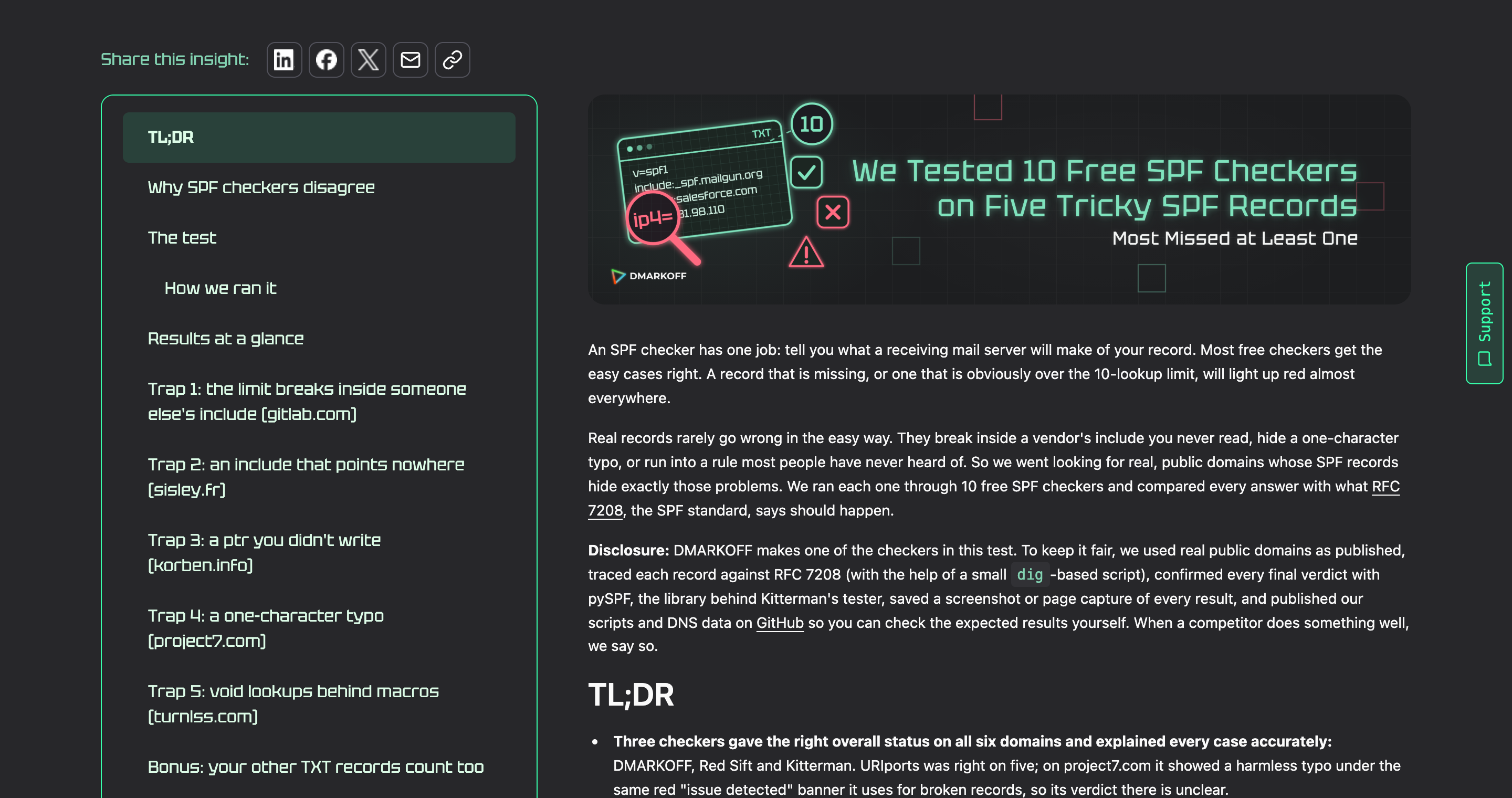
The SPF checkers draft on the QA preview. The cover, the table of contents and the body all came out of the skill's pipeline.
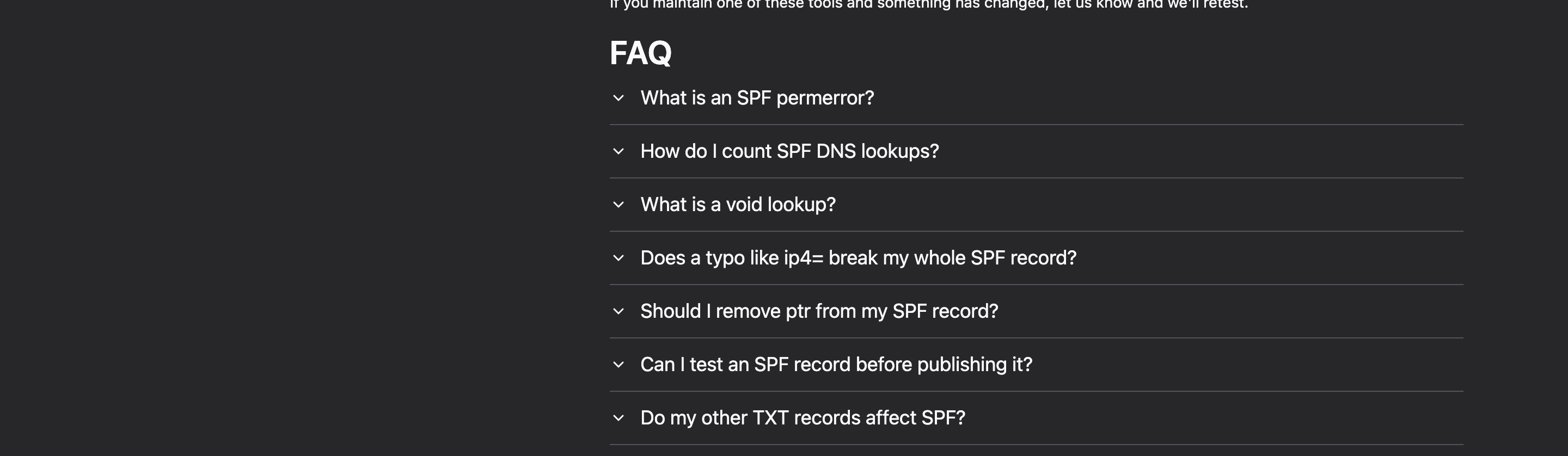
The article's FAQ section becomes the site's accordion, with FAQ schema switched on.
Fix things after review
Reply in the same conversation with what to change: "replace screenshot 4", "move it to SPF & DKIM", "shorten the cover headline". Before every update the skill re-reads the draft, so it notices if someone edited it in Storyblok in the meantime. It keeps the fields it isn't changing and checks the preview again.
One caveat: the article body comes from your source, the Google Doc or the Markdown file. If you edit the text in the Storyblok editor and then ask for another update from the source, the body is rebuilt from the source and your editor changes to it are lost. Make text edits in the doc or the file and ask Claude to update the draft, or tell Claude what you changed in the editor.
Publish
Open the editor link, read the draft once more, check the category, the date and the author, and click Publish. The skill never publishes, and it doesn't delete assets unless you ask it to.
Limits
- It needs the Code tab of the desktop app or the Claude Code CLI on a Mac with Google Chrome. A regular chat can reach Storyblok through the connector, but it can't upload screenshots, render the cover or check the preview.
- Comments in a Google Doc aren't imported. Resolve them before you start.
- To replace an image, the skill uploads a new asset, because the old URL stays cached on the CDN for up to a year.
- Some layout problems can't be fixed from the article: column widths, the table of contents, font weights. Those are frontend changes in the
dmarcoff/ferepo, and the skill says so instead of patching around them with hand-written HTML. - The QA preview is internal. Don't share its links outside the team.
FAQ
Yes. Paste the doc's link into the prompt. Claude reads it through the Google Drive connector, or you download the doc as Markdown and as Word and give it both files.
No. Upload the skill as a zip in Claude under Customize, Skills. GitHub access is only needed to install it as a plugin from the skills repo.
No. Connect the official Storyblok connector and sign in with your own account. Never paste a token or a password into a chat.
No. It only creates and updates drafts. Publishing is always a person clicking Publish in Storyblok.
The space's preview token. It is read-only: the site uses it to show drafts on the QA preview, but it can't create or change stories.
Not fully. The chat can talk to Storyblok through the connector, but screenshots, the cover and the preview check run on your machine, so use the Code tab of the desktop app.
Upload the new zip, or ask the organization owner to update the shared copy. With the plugin, run /plugin marketplace update dmarkoff-skills in Claude Code.
The website frontend team. Open an issue in the dmarcoff/fe repo with the draft link and a screenshot.

Co-founder & CTO at DMARKOFF and GlockApps, email security specialist with 20+ years of experience, Golang & ClickHouse expert. A happy father of two teenagers.